
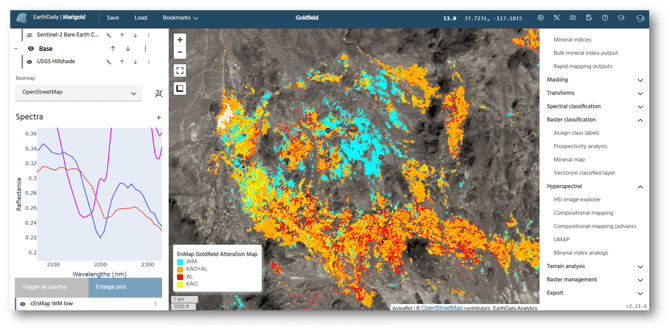
Compositional Mapping 2.0
Hyperspectral imagery can be overwhelming and we want to make that easier. In 2025 we released the first iteration of our advanced mineral and compositional mapping tool with capabilities for mapping White Mica abundance and composition. In this update, we expand the Compositional Mapping tool to include additional minerals that are key to hydrothermal mineral systems, including chlorite (abundance, MgO composition, FeO composition, and MgO/FeO ratio), alunite (abundance and composition), kaolinite (abundance), and carbonate (abundance).
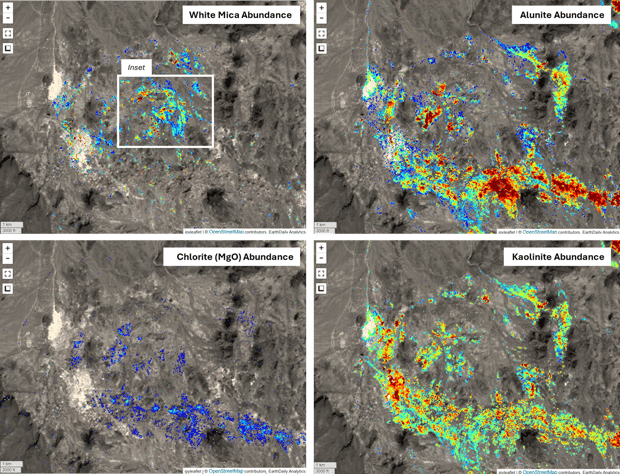
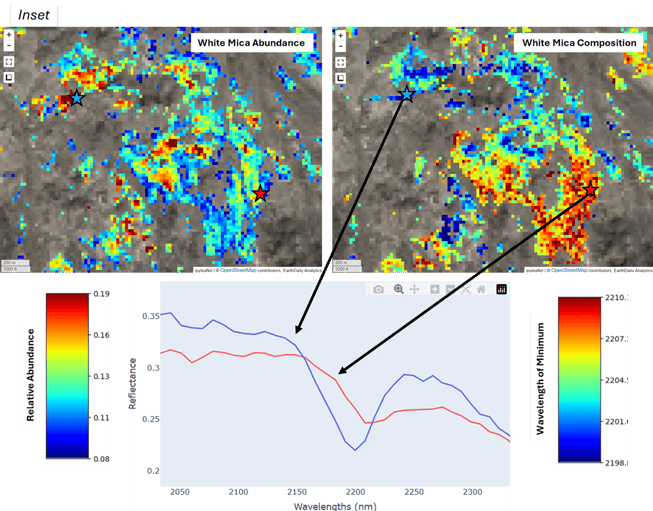
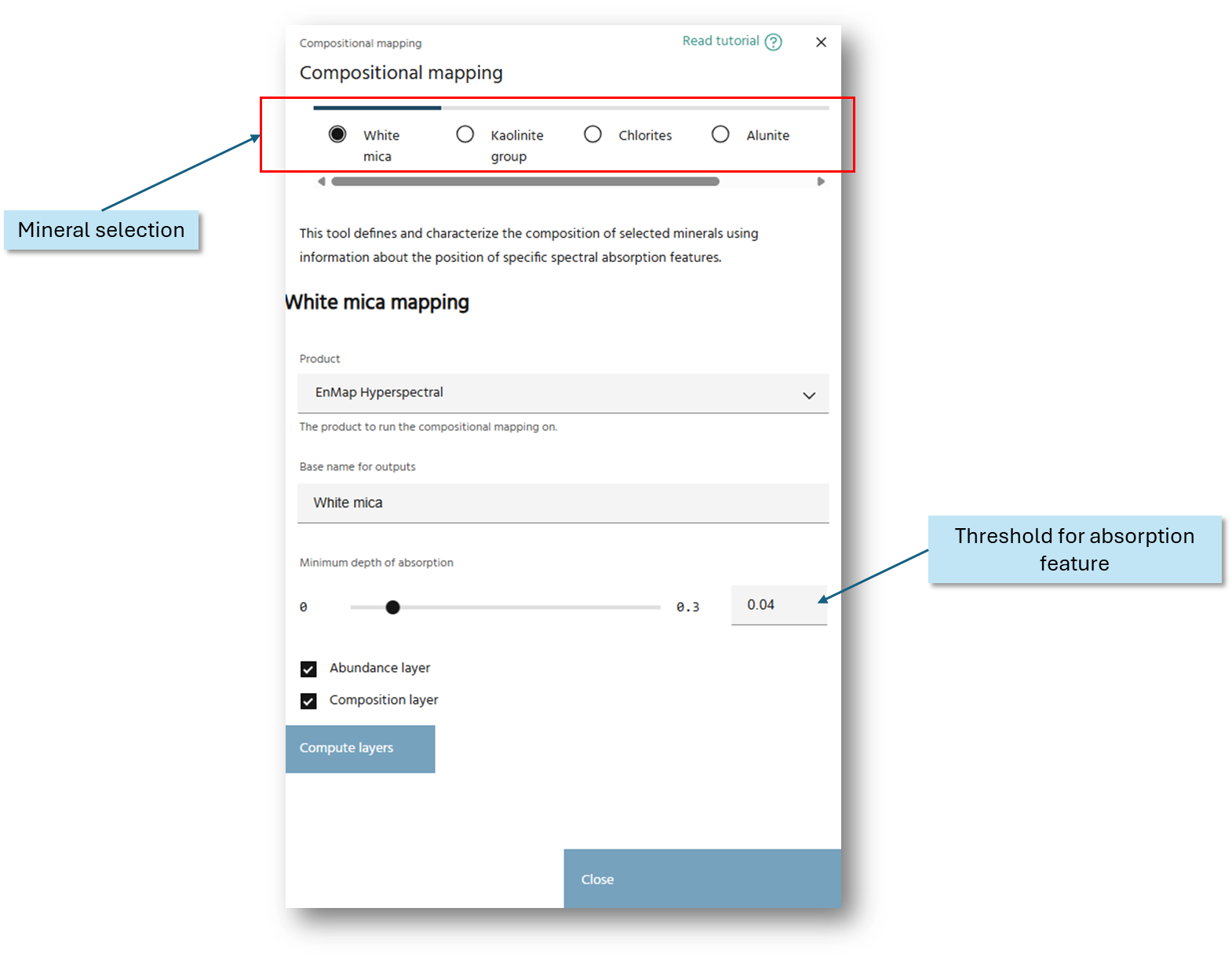
The compositional mapping tool assesses the shape of the hull-normalized spectrum for each pixel in a hyperspectral image and matches the presence or absence of key spectral features, like absorption features, to assess where the mineral is present. The absorption depth slider controls the threshold for matching a mineral based on the depth of the key absorption feature for that mineral. The composition of the mineral, once identified, is defined by the characteristics of that absorption feature, specifically the wavelength position of the minimum.
Additionally, we've redesigned the workflow of this tool to make it simpler to generate and modify your outputs. Simply switch between minerals using the tabs at the bottom. Modify the absorption depth minimum slider to modify the threshold for mineral identification. All outputs are added to a dedicated folder - make sure nothing is on top of it!
The hyperspectral mineral abundance and composition mapping tool is a powerful way to characterize your system, but it's important you have some understanding of the deposit and alteration styles to help interpret and validate results. Always use the spectral query tool to assess the the effectiveness of mineral maps and refine your results.
Mineral Indices Revamped
We want your mineral mapping workflows to be as painless as possible. In some cases that means we compile the best mineral indices and visualizations for you, and other times we put you in control. Marigold 2.12.0 has a bit of both, with updates to both the Raster Calculator and Rapid Mapping Outputs features within the Band Algebra section of the Processing Toolbox.
Raster Calculator: Store Your Favorite Formulas
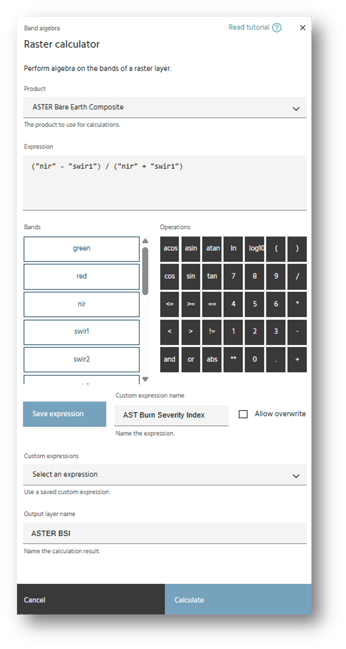
An oldie but a goodie, the Raster Calculator allows users to build their own outputs using custom band math from literature or their own creation. Now, users can save and name their favorite expressions so they can be used over and over in different sessions.
Saved expressions can be loaded directly from the Raster Calculator interface and can be overwritten if you make a mistake. To delete saved expressions, find the full list in the User Settings panel, accessible from the Gear icon in the top ribbon.
Remember, band names and wavelengths may be product specific so a formula built using the wavelength positions of the PRISMA won't work for EnMap imagery because the band positions are slightly different.
Rapid Mapping Outputs Update
The Rapid Mapping Outputs tool is the top spot to find EarthDaily's curated list of mineral indices, RGB band visualizations, and Ternary Ratio (TRatio) combinations that are specifically selected for mineral exploration. In this update, we have added a new section for non-mineral indices and expanded the tool to function with hyperspectral datasets in addition to multispectral. Ultimately, this tool will replace the original Mineral Indices and Hyperspectral Mineral Index Analogs tools, so please make it your new favorite stop on your processing workflow.
Non-mineral indices
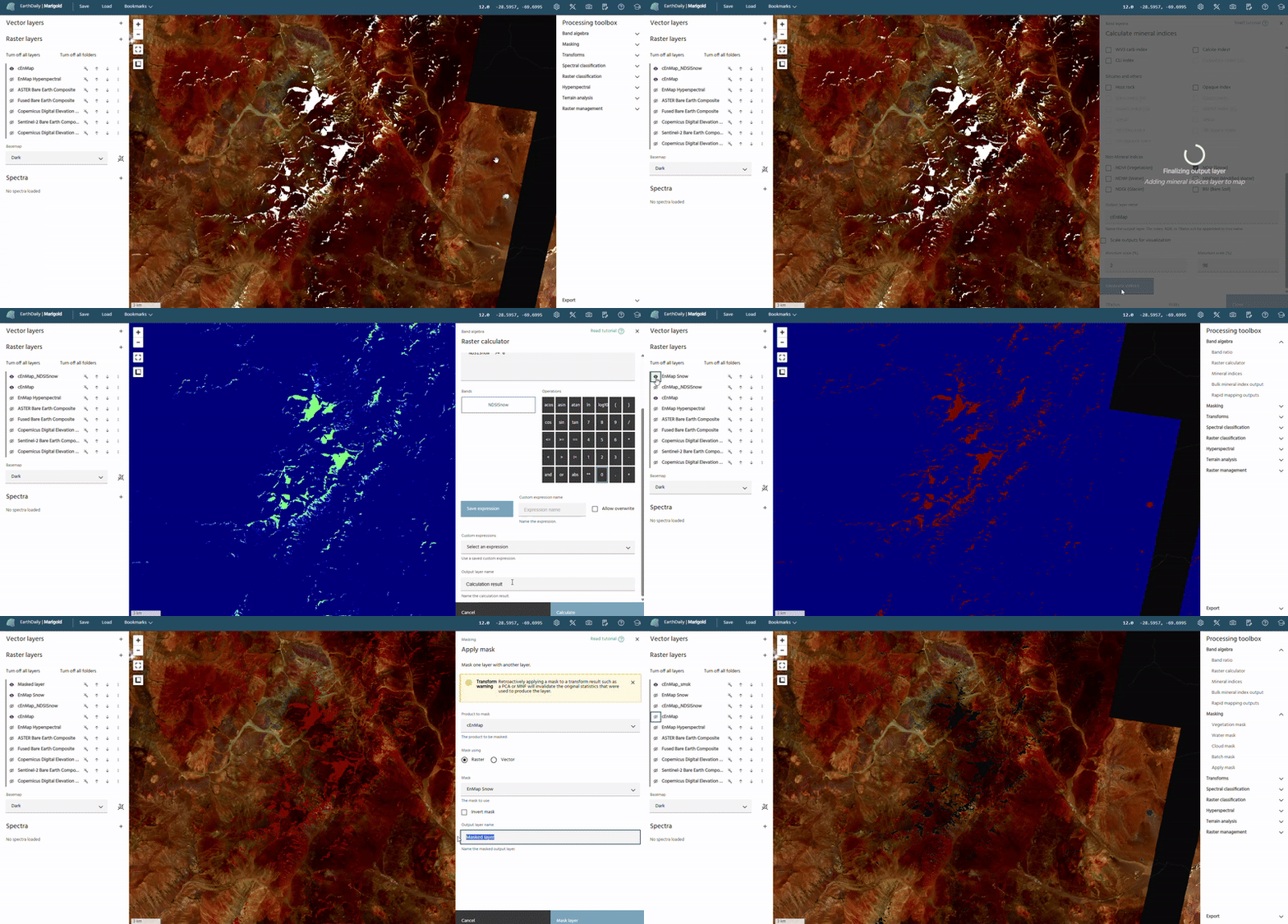
While we've done our best to select the best pixels in our Bare Earth Composites, sometimes there are still features like vegetation, snow, water, and more that need masking. Our built-in water and vegetation masking tools are built for the BECs, but with hyperspectral imagery, there may be more manual masking required.
We've added a handful of useful non-mineral indices to the Rapid Mapping Outputs tool to get started, including:
-
NDVI - Vegetation Index
-
NDWI - Water Index
-
MNDWI - Modified Water
-
NDSI - Snow Index
-
NDGI - Glacier Index
-
BSI - Bare Soil Index
Hyperspectral Analogs
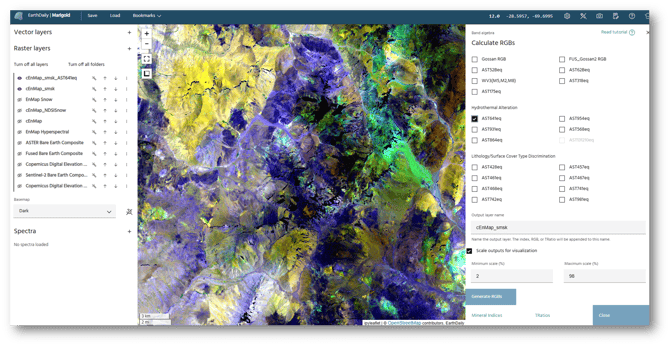
While the beauty of hyperspectral data is the resolution to identify mineral species, not just groups, sometimes it is helpful to start with the mineral indices and RGB visualizations you are already familiar with from multi-spectral processing.
In this update, we've moved the capabilities of the Hyperspectral Mineral Analogs tool in the Rapid Mapping Outputs tool. Mineral index analogs generated from hyperspectral data provide a useful visualization by allowing direct comparison with familiar multispectral indices (e.g., ASTER or Sentinel-2). This tool works by finding the closest available hyperspectral band to match the required input band. If there is no band within 50nm, the index will not be available.
Remember, hyperspectral analogs should be interpreted with caution, as they substitute a single narrow hyperspectral band for a much broader multispectral band, and therefore may not capture the full spectral response or averaging effects on which the original index was designed.
Autosave Reinvented
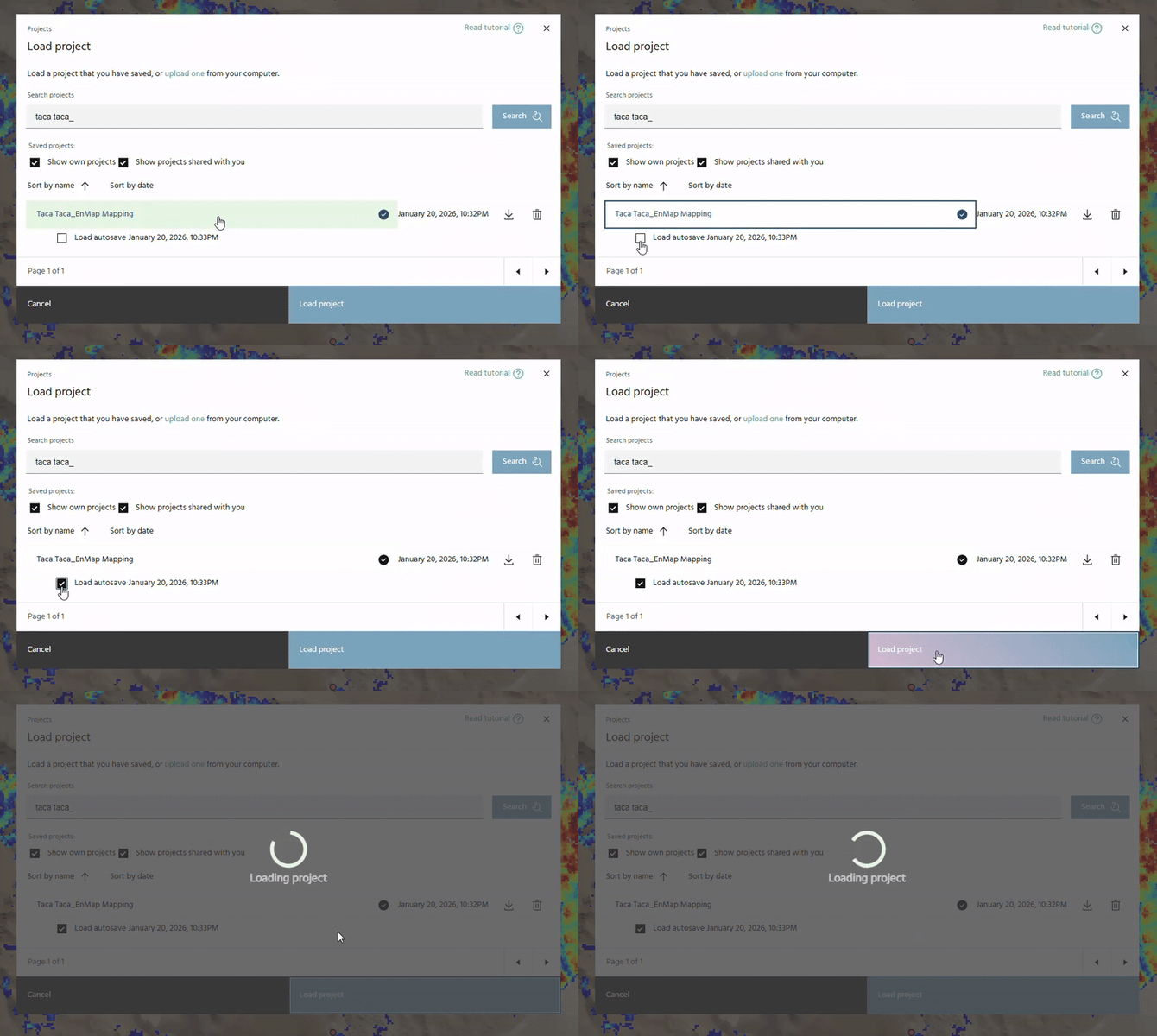
You asked and we listened. The latest version of Marigold includes a major update to the Autosave feature to ensure you never lose you progress again. Now, any project that has been saved with a name will have its own dedicated autosave version. We've also updated the frequency for autosaving by quietly writing a new autosave every time a layer is created, in addition to the 10-minute checkpoints.
In the event you experience a crash or disconnection, have no fear. From the load project menu, any project saved in the new update will now show an autosave checkpoint, if available. Load, save, and continue processing! You'll also see the name of your current project at the top of your Marigold session, so you always know what you're working on.
Note: autosaving does not overwrite your main project file, in case you delete layers or make changes you don't want to keep. Use the Save button to lock in changes to your main project file, or Save as a new name to make a divergent copy.