
From fully editable vectors to expanded folder organisation and a simplified Processing Toolbox, Marigold now offers a cleaner, faster, and more intuitive experience across the board.
What’s new?
- Folders introduced for vectors and spectra
- Editable vectors – Add, move, and delete vector points or vertices as desired
- Simplified mineral indices – deprecated Mineral Index dialogues have now been removed and replaced with Rapid Mapping Outputs
- Spectral classification tools – outputs individual layers per target, rather than as bands within a single layer
- Added an option in the Check export status dialog to download multiple layers at once
As always, this release additionally covers a handful of minor improvements and patches to ensure that your Marigold experience is smoother than ever.
Editable vectors
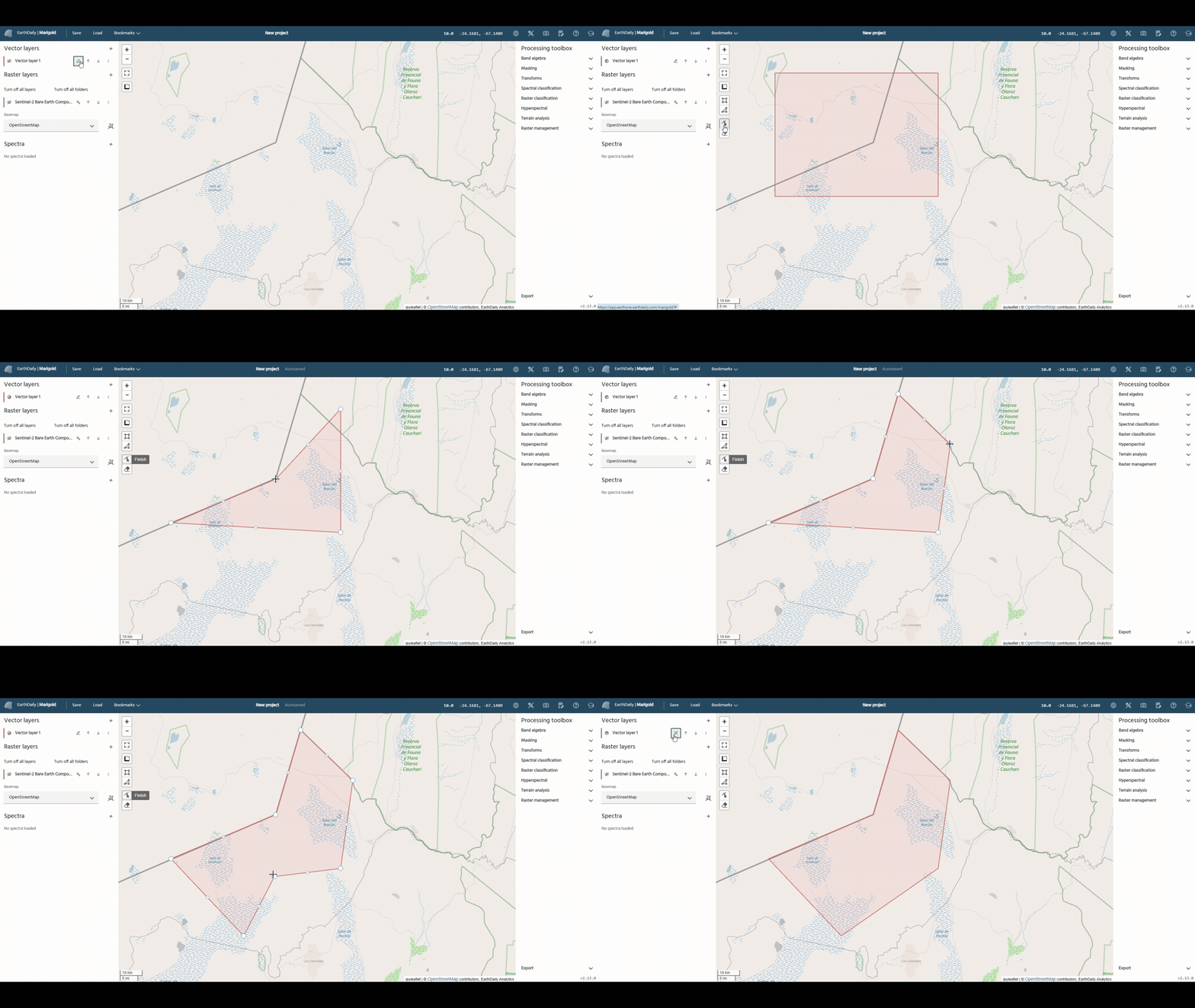
Need to fix a mistake in a vector layer or simply want to add in a new one? No problem – you can now add, remove, or shift vertices using the ‘Toggle drawing’ option in the Vector layers menu. This functionality is available for polygons, polylines or point vectors.
To get started, simply click the ‘Toggle drawing’ button on your chosen vector layer, and select ‘Edit layers’. Vertices appear as larger white circles, which can be easily repositioned by clicking and dragging. New vertices can be introduced by simply clicking the smaller grey midpoint markers along polygon edges or polylines, which converts them into editable new points. Removing vertices is just as straightforward: right-click on any white circle to delete it.
Folders for spectra and vectors
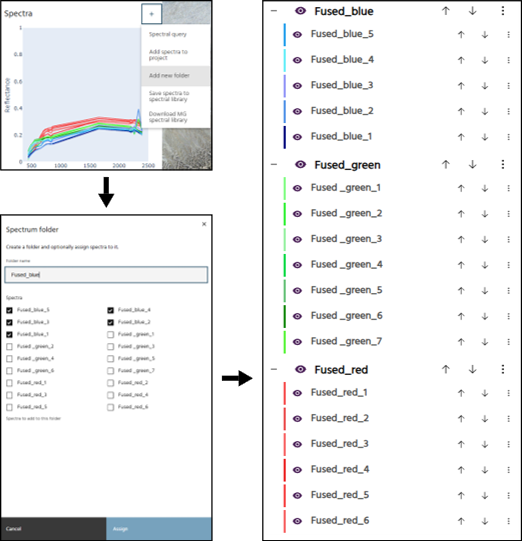
As projects grow in complexity, maintaining an organised workspace becomes essential. First added in Marigold v2.7.0, folders have proven to be an incredibly useful tool when dealing with numerous layers, enabling users to manage their workspaces in a manner that suits them. With this update, the folder system has been extended to include both spectra and vectors, allowing these features to be grouped as you see fit.
Creating and managing folders works in the exact same way for vectors and spectra as for layers: to add a new folder, click on the ‘+’ button next to either ‘Vector layers’ or ‘Spectra’ in the lefthand panel and select ‘Add new folder’. In the dialogue that appears on the righthand side, enter a folder name and select the relevant vectors or spectra for your folder, and press ‘Assign’. Repeat as needed until you are happy with your organisation.
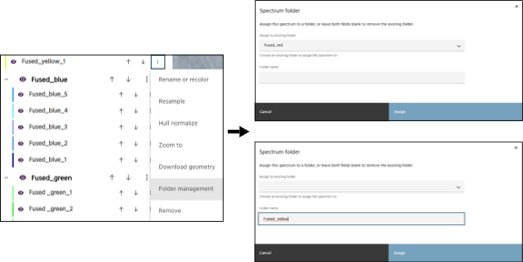
As with raster layers, there is also the option to assign vectors or spectra to existing folders, or create a new folder, through ‘Folder management’. This can be found by clicking the three vertical dot icon next to the selected vector or spectrum. Within the Vector or Spectrum folder, you have the options to assign to an existing folder, which can be selected from the drop-down menu, or name a new folder in the box below.
Streamlined spectral classification tools
Mineral Index dialog replacement
The deprecated mineral index dialogues have now been fully replaced with the Rapid Mapping Outputs tool, under the Band Algebra umbrella. All pre-defined mineral indices can now be found within this tool, providing a tidier interface and easier navigation. First released in Marigold v2.9.0, Rapid Mapping Outputs have significantly sped up workflows, enabling automated creation of mineral indices, RGB band visualisations, and Ternary Ratio (TRatio) products using EarthDaily’s pre-defined visualisations developed by our expert team of spectral geologists, removing the need for time consuming manual processing.
Spectral classification output update
Additionally, all spectral classification tools now have the option of outputting one layer per target instead of one layer with multiple bands.
Other updates
- Added an option in the Check export status dialog to download multiple layers at once
- Measuring tool now shows area in square kilometres
- Added option to automatically set values for classified layers
- Spectra can now be computed over point vector layers
- Added support for morphological operations (erosion and dilation
- Users can now set a default colormap in Settings
- Name stem can now be set for spectral queries